Generate Product Page
How to Generate a Product Page
Generate stunning AI-powered product pages in just a few clicks. Choose between simple settings for quick generation or advanced settings for full customization.
Step 1: Click “Create New” Button
From the Orcai home page, click the “Create New” button to start generating a new product page.
Step 2: Select Your Product
You have two options to get started:
Option A: Pick from Your Connected Store
After connecting your Shopify store, browse and select any product from your catalog.
Option B: Add a New URL
Click “Add New URL” to generate a product page from an external product link (Amazon, AliExpress, Temu, etc.).
Step 3: Configure Generation Settings
When you click generate, a popup will appear with two modes:
Simple Settings (Quick Generation)
Just click “Generate” to use the default settings and start generating immediately.
Advanced Settings
Click the gear icon to access advanced customization options:
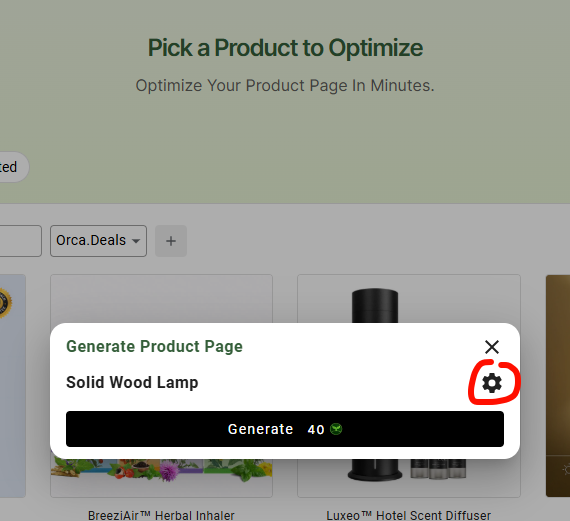
- Language – Choose from 31 supported languages
- Purpose (Brand Name) – Customize the brand voice and messaging
- Marketing Platform – Optimize content for specific platforms
- Target Country – Tailor content for your target market
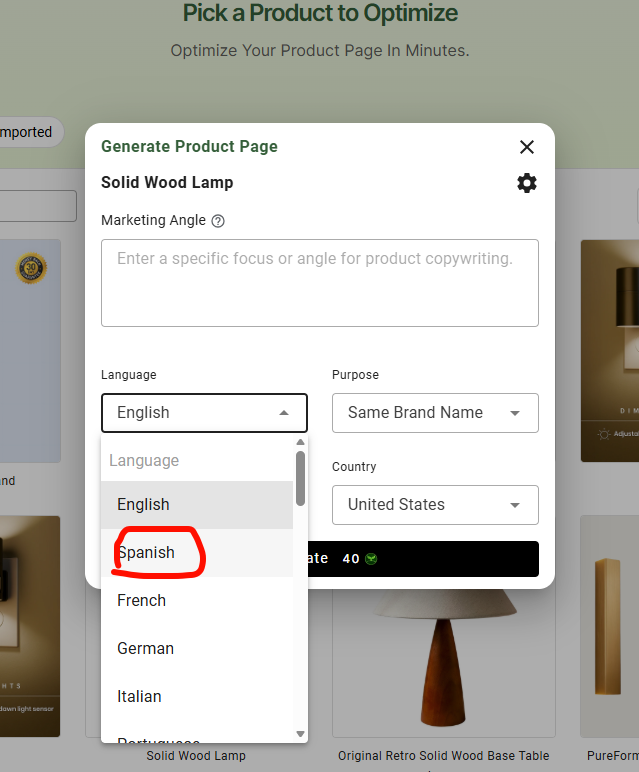
Supported Languages
Orcai supports 31 languages for product page generation:
| English (default) | Bulgarian | Chinese (Simplified) | Chinese (Traditional) |
| Croatian | Czech | Danish | Dutch |
| Finnish | French | German | Greek |
| Hungarian | Indonesian | Italian | Japanese |
| Korean | Lithuanian | Norwegian Bokmål | Polish |
| Portuguese (Brazil) | Portuguese (Portugal) | Romanian | Russian |
| Slovak | Slovenian | Spanish | Swedish |
| Thai | Turkish | Vietnamese |
Step 4: Generate and Wait
- Click “Generate” to start the AI generation process.
- Wait approximately 90-180 seconds for the page to be created.
- Once complete, you’ll see your fully generated product page ready for editing!